After completing this lesson, you'll be able to:
In this lesson, you will:
After completing this lesson, you'll be able to:
In this lesson, you will:
If you're taking a live Safe Software-hosted training course or using an on-demand lab for this course, we've already imported the content for this lesson into your FME Flow.
If you're completing this lesson with your own FME Flow, you must import the starting project with the content into your FME Flow.
See FME Flow Authoring: Instructions to Import the Starting Project for directions to import the project to your own FME Flow.
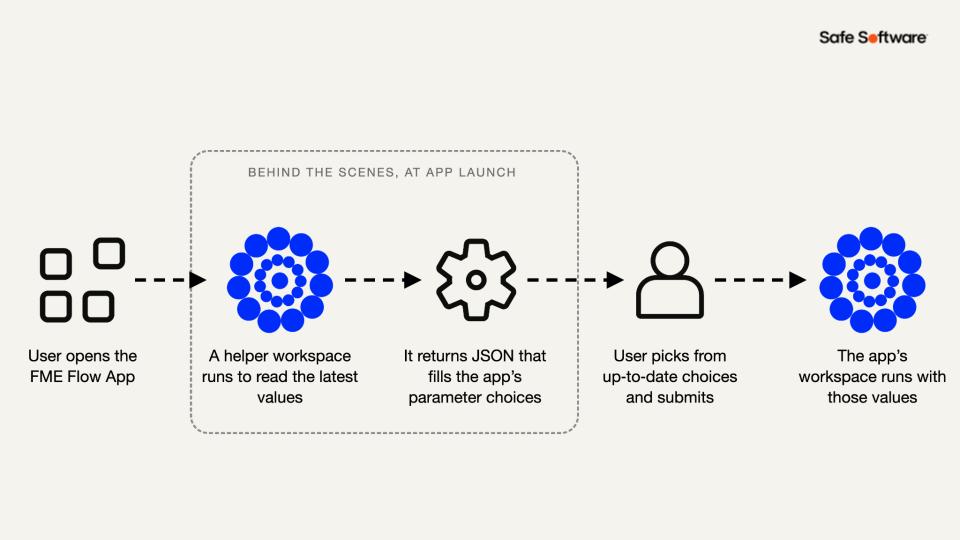
When you populate parameters at the time of app launch, the JSON file you reference in Resources or with a URL may be stale or static. When your app uses a workspace to populate the parameters, the workspace runs as soon as the app URL loads to generate the JSON configuration and immediately populate the parameters with the data. The choices and default values are set when the workspace app loads, not set beforehand and stored in a file. Workspaces are useful to dynamically populate parameters as simple as setting the current date and time as the default value, or as complex as pulling active choice values from another web service API.
A configuration workspace runs every time someone loads the workspace app. It's best to keep it as simple as possible so it runs and populates the parameters quickly. Reading a large dataset to build a short choice list will make the app slow to appear.
To successfully populate parameters dynamically with a workspace, the workspace must output a JSON array with one object per parameter. The simplest way is to use a JSON (JavaScript Object Notation) writer that returns the JSON configuration.
[
  {
    "name" : "date",
    "defaultValue" : "20260519"
  },
  {
    "name" : "region",
    "defaultValue" : "",
    "choices" : [
      { "display" : "Lower Mainland District",  "value" : "drivebc.ca/1" },
      { "display" : "Vancouver Island District", "value" : "drivebc.ca/2" }
    ]
  }
]
name must match the parameter's identifier in the workspace exactly, including its case.defaultValue is the starting default value the app loads with. The app user may leave the value or change it, just like any other user parameter. An empty string, as region uses above, starts the parameter unset so the user has to choose. choices replaces the parameter's list of options. Each entry pairs a display, which the user reads, with a value, which the workspace receives.A parameter that accepts more than one value (like a choice to select multiple values) takes a JSON array as its defaultValue, so ["HAZARD", "ICE_COVERED"] pre-selects two options.
For choices, the parameter's configuration must be an array of objects. To do this, you need to build a list for the attribute to carry choices{}.display and choices{}.value. The JSON writer bridges that with its Nested Output parameter, which is on by default: attribute names written in list notation become nested arrays and objects in the output. A feature carrying a list is therefore written as the choices array shown above.
If you leave a parameter out of the JSON array, or the name does not match exactly, the parameter keeps whatever the workspace already set as its default value and choice options.
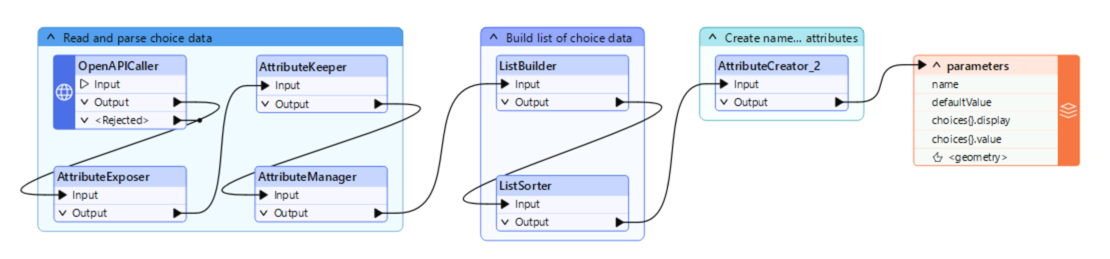
The workspace that produces the JSON should begin by reading the source data to populate parameters, then build the parameter configurations, and write out the JSON.
choices for the region parameter above has two options that you would need to generate as a list.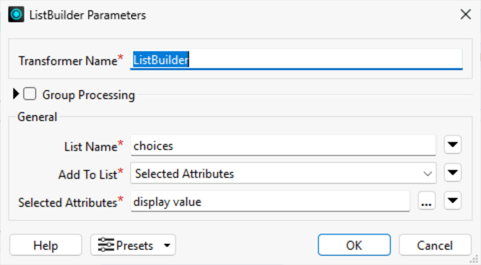
name attribute, along with any default value. It designates which parameter each object modifies, so it has to exist as an attribute by the time the feature reaches the writer. The AttributeCreator is the easiest option for this.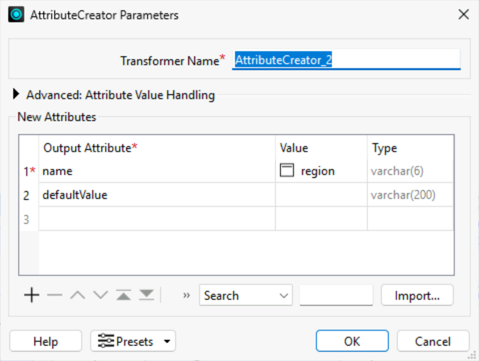
json_featuretype and a json_geometry key, and FME Flow reads only name, defaultValue and choices. The writer's feature type name and output file name make no difference, because FME Flow reads what the workspace returns rather than a file on disk. 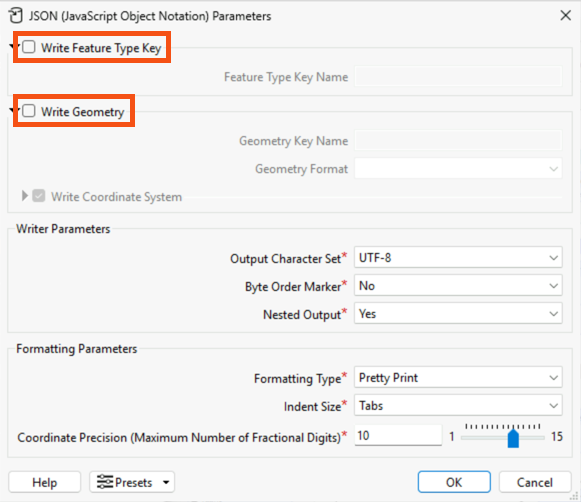
You may test your JSON output from FME Workbench by entering the JSON into the Dynamic Parameter Configuration on FME Flow.
Like any other workspace, the configuration workspace has to be published to FME Flow before an app can run it. It has no special status there. It is an ordinary workspace whose output happens to be the JSON structure FME Flow expects, so it can live in any repository and use any service — FME Flow runs it and reads its output directly, without going through a service endpoint.
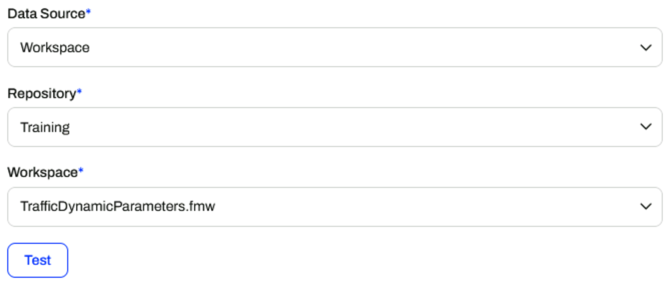
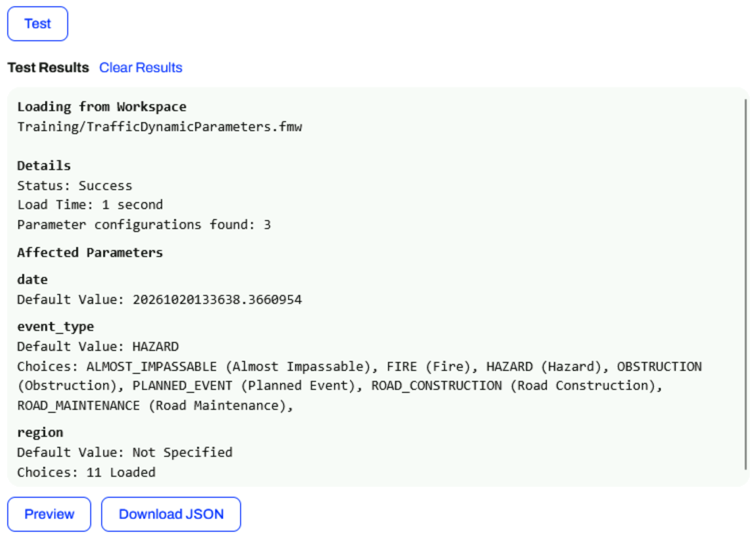
To point an app at it, edit the app and expand Dynamic Parameter Configuration. With Enable Dynamic Parameters on, go to App Launch Settings and turn on Enable Configuration Loading at Launch, then set Data Source to Workspace. Select the Repository and the Workspace that returns the configuration, and click Test to see the configuration FME Flow reads back before you save.
In FME Flow 2025.2, you must publish the parameter data source workspace in the same repository as the workspace app's workspace and use the Data Streaming service. In 2026.1+, dynamic parameters support workspaces in any repository using any service.
The content used in this lesson builds on the previous lesson. To do this exercise, you will need to continue with your workspace app from the exercise in Configure Dynamic App Parameters after you test a workspace that supplies dynamic parameter configuration.

Jennifer's alerts app now reads its choices from a JSON file stored in Resources. The JSON file added all possible traffic event types and regions; however, the date is static. This means the user must manually change the date to today's date each time they run the app. The app also lists all potential event types, not only those that actively exist. To pull today's date and active event types dynamically when the app launches, Jennifer would like to use a workspace to populate the parameters. She's already built the workspace that produces the JSON configuration and published it to FME Flow. You will run this workspace to inspect the JSON it produces, then edit the BCTrafficEvents app to use the workspace to supply and populate the parameters dynamically.
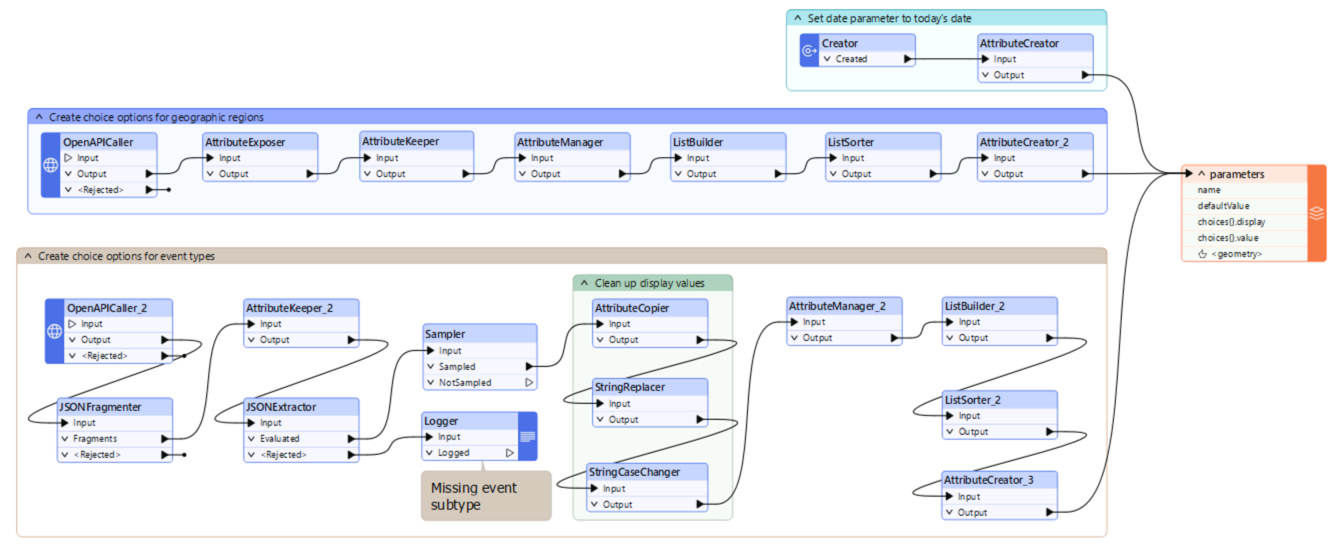
To view the workspace, open the starting workspace (C:\FMEData\Workspaces\CreateDataIntegrationApps\TrafficDynamicParameters.fmw) in FME Workbench. The workspace queries the API for the regions and event types parameters and supplies today's date as the default value for the date parameter. The workspace formats the JSON array and outputs the JSON file.
In this exercise, you will:
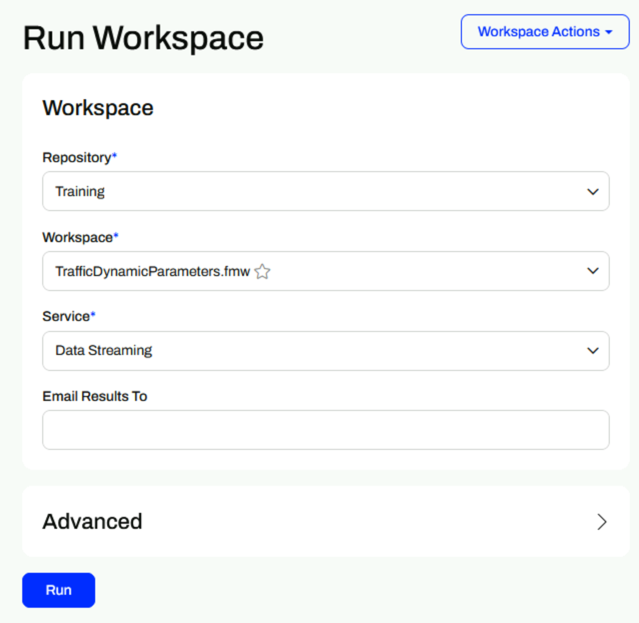
defaultValue of today's date, and choices arrays for the event types and regions, each pairing a display with a value.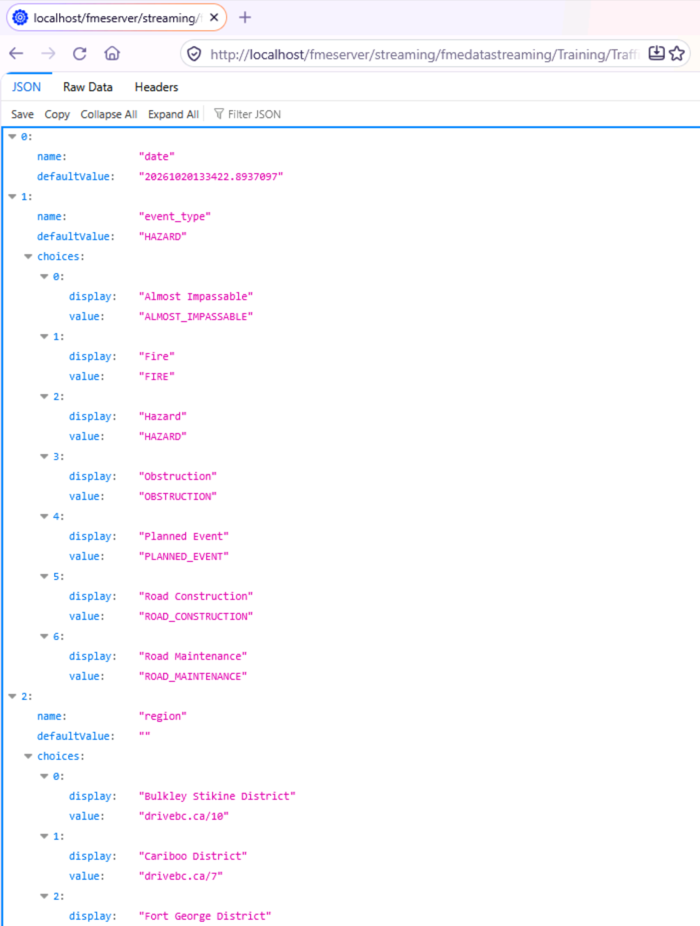
An app can now compute its own defaults and choices at launch, so the parameter default values and options stay current without anyone maintaining a file.
If you're taking a live Safe Software-hosted training course or using an on-demand lab for this course, we've already imported the content for this lesson into your FME Flow.
If you're completing this lesson with your own FME Flow, you must import the starting project with the content into your FME Flow.
See FME Flow Authoring: Instructions to Import the Starting Project for directions to import the project to your own FME Flow.
When you populate parameters at the time of app launch, the JSON file you reference in Resources or with a URL may be stale or static. When your app uses a workspace to populate the parameters, the workspace runs as soon as the app URL loads to generate the JSON configuration and immediately populate the parameters with the data. The choices and default values are set when the workspace app loads, not set beforehand and stored in a file. Workspaces are useful to dynamically populate parameters as simple as setting the current date and time as the default value, or as complex as pulling active choice values from another web service API.
A configuration workspace runs every time someone loads the workspace app. It's best to keep it as simple as possible so it runs and populates the parameters quickly. Reading a large dataset to build a short choice list will make the app slow to appear.
To successfully populate parameters dynamically with a workspace, the workspace must output a JSON array with one object per parameter. The simplest way is to use a JSON (JavaScript Object Notation) writer that returns the JSON configuration.
[
  {
    "name" : "date",
    "defaultValue" : "20260519"
  },
  {
    "name" : "region",
    "defaultValue" : "",
    "choices" : [
      { "display" : "Lower Mainland District",  "value" : "drivebc.ca/1" },
      { "display" : "Vancouver Island District", "value" : "drivebc.ca/2" }
    ]
  }
]
name must match the parameter's identifier in the workspace exactly, including its case.defaultValue is the starting default value the app loads with. The app user may leave the value or change it, just like any other user parameter. An empty string, as region uses above, starts the parameter unset so the user has to choose. choices replaces the parameter's list of options. Each entry pairs a display, which the user reads, with a value, which the workspace receives.A parameter that accepts more than one value (like a choice to select multiple values) takes a JSON array as its defaultValue, so ["HAZARD", "ICE_COVERED"] pre-selects two options.
For choices, the parameter's configuration must be an array of objects. To do this, you need to build a list for the attribute to carry choices{}.display and choices{}.value. The JSON writer bridges that with its Nested Output parameter, which is on by default: attribute names written in list notation become nested arrays and objects in the output. A feature carrying a list is therefore written as the choices array shown above.
If you leave a parameter out of the JSON array, or the name does not match exactly, the parameter keeps whatever the workspace already set as its default value and choice options.
The workspace that produces the JSON should begin by reading the source data to populate parameters, then build the parameter configurations, and write out the JSON.
choices for the region parameter above has two options that you would need to generate as a list.
name attribute, along with any default value. It designates which parameter each object modifies, so it has to exist as an attribute by the time the feature reaches the writer. The AttributeCreator is the easiest option for this.
json_featuretype and a json_geometry key, and FME Flow reads only name, defaultValue and choices. The writer's feature type name and output file name make no difference, because FME Flow reads what the workspace returns rather than a file on disk.
You may test your JSON output from FME Workbench by entering the JSON into the Dynamic Parameter Configuration on FME Flow.
Like any other workspace, the configuration workspace has to be published to FME Flow before an app can run it. It has no special status there. It is an ordinary workspace whose output happens to be the JSON structure FME Flow expects, so it can live in any repository and use any service — FME Flow runs it and reads its output directly, without going through a service endpoint.
To point an app at it, edit the app and expand Dynamic Parameter Configuration. With Enable Dynamic Parameters on, go to App Launch Settings and turn on Enable Configuration Loading at Launch, then set Data Source to Workspace. Select the Repository and the Workspace that returns the configuration, and click Test to see the configuration FME Flow reads back before you save.
In FME Flow 2025.2, you must publish the parameter data source workspace in the same repository as the workspace app's workspace and use the Data Streaming service. In 2026.1+, dynamic parameters support workspaces in any repository using any service.
The content used in this lesson builds on the previous lesson. To do this exercise, you will need to continue with your workspace app from the exercise in Configure Dynamic App Parameters after you test a workspace that supplies dynamic parameter configuration.
Jennifer's alerts app now reads its choices from a JSON file stored in Resources. The JSON file added all possible traffic event types and regions; however, the date is static. This means the user must manually change the date to today's date each time they run the app. The app also lists all potential event types, not only those that actively exist. To pull today's date and active event types dynamically when the app launches, Jennifer would like to use a workspace to populate the parameters. She's already built the workspace that produces the JSON configuration and published it to FME Flow. You will run this workspace to inspect the JSON it produces, then edit the BCTrafficEvents app to use the workspace to supply and populate the parameters dynamically.
To view the workspace, open the starting workspace (C:\FMEData\Workspaces\CreateDataIntegrationApps\TrafficDynamicParameters.fmw) in FME Workbench. The workspace queries the API for the regions and event types parameters and supplies today's date as the default value for the date parameter. The workspace formats the JSON array and outputs the JSON file.
In this exercise, you will:
defaultValue of today's date, and choices arrays for the event types and regions, each pairing a display with a value.
An app can now compute its own defaults and choices at launch, so the parameter default values and options stay current without anyone maintaining a file.
